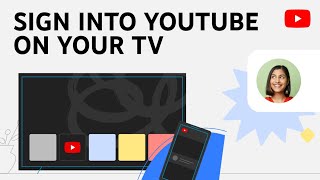
Why Sign In to YouTube on Android TV?
Signing into YouTube on your Android TV gives you access to personalized recommendations, saved playlists, and the ability to subscribe to channels across the big screen. Once you are logged in, the app syncs your mobile or desktop activity, so you can continue watching where you left off, receive notifications, and use voice commands to control playback.
Step‑by‑Step Guide to Log In to YouTube on Android TV
Follow these simple steps to sign into YouTube on any Android TV box or smart TV. The process works for most models released in the last five years.
1. Open the YouTube App
- From the home screen, navigate to the YouTube icon and press OK on your remote.
- If the app is not installed, go to the Google Play Store, search for “YouTube,” and install it.
2. Select “Sign In”
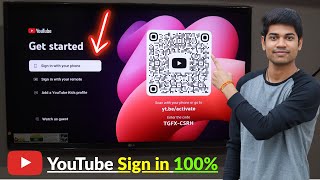
When the app launches, you will see a Sign In button in the left‑hand menu. Highlight it and press OK.
3. Choose a Login Method
You have two common options:
- Phone/Tablet Pairing Code – The TV displays a 9‑digit code.
- Direct Sign‑In – You can enter your Google account email and password using the remote’s on‑screen keyboard.
4. Pair Your Device (Phone/Tablet Method)
- On your phone or tablet, open the YouTube app or go to youtube.com/activate.
- Sign in with the same Google account you want on the TV.
- Enter the 9‑digit code shown on the TV and tap Next.
- The TV will automatically confirm the login and load your subscriptions.
5. Direct Sign‑In (Keyboard Method)
If you prefer using the remote, follow the on‑screen prompts to type your email address, password, and any two‑step verification code. Use the arrow keys to move the cursor and the Enter button to confirm each field.
6. Confirm and Enjoy
After the account is linked, you will see your channel list, liked videos, and personalized home screen. You are now ready to stream YouTube content on your Android TV.
Common Login Issues and How to Fix Them
Even with a clear guide, users sometimes encounter obstacles. Below are the most frequent problems and proven solutions.
Problem 1: “Code Not Accepted” Error
- Check the code – Ensure you typed the 9‑digit code exactly as displayed.
- Refresh the code – Press the Refresh icon on the TV screen