How To Add Checkbox In Excel
Excel is a powerful tool for data analysis, but sometimes you need a simple visual cue to track status, confirm tasks, or create interactive lists. Adding a checkbox is one of the easiest ways to do this. In this tutorial, we're going to talk about the step‑by‑step process to insert checkboxes, customize them, and use them in real‑world scenarios.
Why Use Checkboxes in Excel?
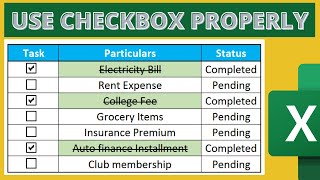
Checkboxes give you a clear, clickable interface for:
- Task completion tracking
- Data validation in forms
- Conditional formatting triggers
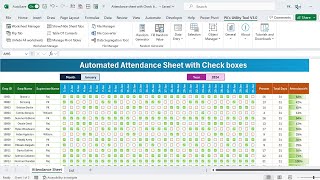
- Interactive dashboards
Once you learn how to add and manipulate checkboxes, you can create dynamic spreadsheets that respond instantly to user input.
Prerequisites: Enable the Developer Tab
Before you can insert a checkbox, the Developer tab must be visible on the Ribbon. If it’s not already enabled:
- Click File → Options.
- Select Customize Ribbon.
- Check the box next to Developer and click OK.
Now you’re ready to add a checkbox. In this video you will learn how to quickly insert and configure checkboxes using the Developer tools.
Step 1 – Insert a Checkbox
Follow these steps to place a checkbox in a cell:
- Navigate to the Developer tab.
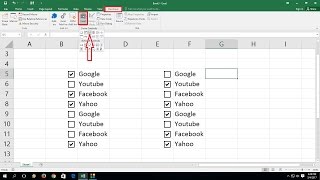
- Click Insert in the Controls group.
- Under Form Controls, select the Checkbox icon.
- Click in the worksheet where you want the checkbox to appear. A default checkbox will be added.
Repeat this process for each cell that requires a checkbox. In this video guides about creating multiple checkboxes, you’ll see how to copy and paste them efficiently.
Step 2 – Link a Checkbox to a Cell
Linking a checkbox to a cell turns it into a boolean value (TRUE/FALSE) that you can use in formulas.
- Right‑click the checkbox and choose Format Control.
- Go to the Control tab.
- In the Cell link field, enter the cell reference you want to connect (e.g., B2).
- Click OK.
Now, checking the box will set the linked cell to TRUE, and unchecking it will set it to FALSE. You can use these values in conditional formatting, formulas, or dashboards.
Step 3 – Format the Checkbox
Checkboxes can be customized for a cleaner look:
- Right‑click the checkbox and select