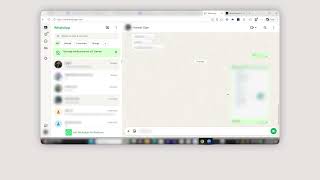
How To Blur Whatsapp Web: A Step‑by‑Step Guide for Chrome and Firefox
WhatsApp Web makes it easy to chat from your computer, but the convenience can turn into a privacy risk when someone glances at your screen. Fortunately, you can blur or hide the chat window with a few simple tricks. This article explains how to blur Whatsapp Web using built‑in browser features and trusted extensions, so only you can view the messages.
Why Blur Whatsapp Web?
Online privacy and security are crucial, especially for personal conversations. A blurred screen prevents:
- Shoulder‑surfing in public places or shared workspaces.
- Accidental exposure of sensitive information to family members or colleagues.
- Distractions caused by others watching your chat activity.
By adding a blur layer, you keep your chats private without sacrificing the convenience of WhatsApp Web.
Method 1: Using Browser Extensions
Chrome Users
- Install a blur extension. Search for “Blur Page” or “Screen Privacy” in the Chrome Web Store. Popular choices include Blur Page* and *Screen Shield*.
- Activate the extension. After installation, click the extension icon in the toolbar while on web.whatsapp.com. Choose “Blur” from the menu.
- Adjust the intensity. Most extensions let you set the blur radius (e.g., 5 px to 15 px). Pick a level that hides the text but still lets you see the layout.
- Toggle on demand. When you need to read a message, click the icon again to disable the blur temporarily.
Firefox Users
- Find a privacy add‑on. Visit addons.mozilla.org and search for “Blur Page” or “Privacy Blur.” Add‑ons like Blur Page* are compatible with Firefox.
- Enable the add‑on. Open WhatsApp Web, click the add‑on button in the toolbar, and select “Enable Blur.”
- Set your preferences. Use the options panel to define blur strength and whether the effect should apply automatically to all tabs or only to WhatsApp Web.
- Use the shortcut. Many add‑ons provide a keyboard shortcut (e.g., Ctrl+Shift+B) to turn the blur on or off instantly.
Extensions are quick to install and work across all websites, but they require permission to read page content. Choose a reputable add‑on with good reviews to stay safe.
Method 2: Creating a Custom CSS Filter
If you prefer not to add extra software, you can apply a CSS blur filter directly from the browser’s developer tools. This method works in both Chrome and Firefox.
Step‑by‑Step Instructions
- Open Developer Tools.