How To Downgrade A WordPress Plugin Without Using FTP
Sometimes a new plugin version introduces bugs, conflicts, or performance issues that weren’t present in the previous release. While many site owners instinctively reach for FTP to replace files manually, there are safer, more convenient methods that keep you inside the WordPress dashboard. This guide walks you through three reliable ways to roll back a plugin without touching FTP, while protecting your site’s data and uptime.
Why Choose a Non‑FTP Approach?
Speed and simplicity are the main reasons. When you avoid FTP, you eliminate the need to locate server credentials, open a client, and manually replace files—a process that can be error‑prone and time‑consuming. Additionally, using built‑in WordPress tools or trusted plugins ensures that version histories are logged, making it easier to track changes and restore the correct state if something goes wrong.
Method 1: Use the WordPress Dashboard to Reinstall an Older Version
The WordPress admin area includes a built‑in “Reinstall” feature that works for both themes and plugins. Follow these steps to downgrade safely:
Step‑by‑step process
- Log in to your WordPress admin panel. Navigate to Plugins → Installed Plugins.
- Deactivate the plugin you want to roll back. Deactivation prevents conflicts while you replace the files.
- Delete the plugin. This removes the current version from your site but does not affect the database entries it created.
- Open the plugin’s page on WordPress.org. Locate the “Advanced View” link on the right‑hand side.
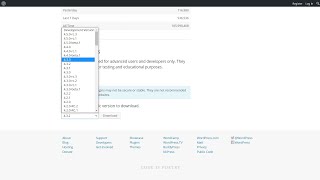
- Scroll to the “Previous Versions” dropdown. Select the version you need and click “Download”.
- Return to the admin panel and click “Add New” under Plugins. Choose “Upload Plugin”, select the ZIP you just downloaded, and click “Install Now”.
- Activate the plugin. Verify that the older version works as expected.
Because the process uses WordPress’s own installer, it automatically handles file permissions and updates the plugin list without any FTP interaction.
Method 2: Leverage a Dedicated Rollback Plugin
Several reputable plugins add a “Rollback” button directly to the plugins page, streamlining the downgrade to a single click. Two popular choices are WP Rollback and Plugin Rollback. Here’s how to use them:
Installation and usage
- Navigate to Plugins → Add New and search for “WP Rollback”.
- Install and activate the plugin.
- Go back to Plugins → Installed Plugins. You’ll now see a “Rollback” link under each plugin that supports version history.
- Click “Rollback”, choose the desired version from the