How To Hide App In iPhone: A Step‑by‑Step Guide
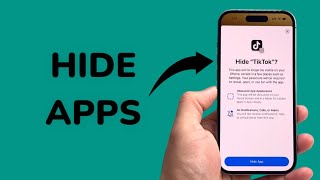
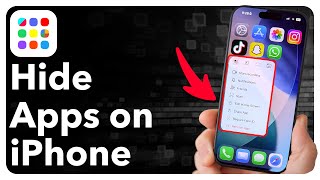
Whether you want to keep a personal finance app private, reduce visual clutter, or simply surprise a friend, learning how to hide app in iPhone is a useful skill. Apple provides several native options that let you conceal apps without third‑party software. In this article you’ll discover the secret to a cleaner home screen, learn the built‑in tools Apple offers, and see how the latest iOS 18 features expand your privacy toolkit.
Why Hide Apps on Your iPhone?
There are many legitimate reasons to hide an app:
- Privacy: Keep banking, health, or messaging apps out of sight from prying eyes.
- Organization: Reduce home‑screen clutter and focus on the apps you use most.
- Surprise: Preserve a gift or secret project until the right moment.
Because iOS integrates tightly with iCloud and Siri, any app you hide will still receive updates and notifications, but it won’t be visible on the main pages unless you choose to reveal it again.
Built‑In Methods to Hide an App
1. Use the App Library (iOS 14+)
The App Library automatically groups apps into categories and places them at the far right of your home‑screen pages. You can hide an app from the regular pages while keeping it accessible in the library.
- Press and hold the app icon you want to hide.
- Select Remove App from the context menu.
- Choose Move to App Library. The app disappears from your home screen but remains searchable in the App Library.
You can quickly find hidden apps by swiping left to the App Library or using the Spotlight search bar.
2. Hide Apps with Screen Time Restrictions
Screen Time lets you set content and privacy limits that effectively hide apps from the home screen and Search.
- Open Settings → Screen Time → Content & Privacy Restrictions.
- Toggle Content & Privacy Restrictions on.
- Tap Allowed Apps and switch off the toggle for the app you wish to hide.
When the toggle is off, the app icon disappears, and attempts to open it via Siri or Spotlight will be blocked. You can easily reverse the process by re‑enabling the toggle.