How To Jam Spotify: A Step‑by‑Step Guide to Listening Together
Want to listen to music together with friends in real time? This step‑by‑step guide will show you how to use and set up a shared listening session on Spotify, so you can experience the joy of shared playlists and synchronized beats! Whether you’re planning a virtual house party, a study session, or just a casual hangout, Spotify’s collaborative features make it easy to jam together from anywhere.
Introducing Spotify Group Sessions
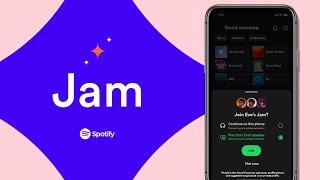
Spotify’s Group Session feature lets Premium members control playback simultaneously on multiple devices. One host starts the session, invites friends, and everyone hears the same track at the same moment. No lag, no confusion—just pure, coordinated listening.
How to START a Group Session
- Open Spotify on a mobile device. Group Sessions are currently supported on iOS and Android.
- Play any song, album, or playlist you want to share.
- Tap the Connect icon (looks like a speaker with a waveform) at the bottom of the screen.
- Select Start a group session. A unique invite link and a QR code will appear.
- Copy the link or share the QR code with friends. They can join from their own Spotify apps.
Create a Share Playlist with Other People That Use Spotify
Before you start a Group Session, you might want a dedicated playlist that everyone can edit. Follow these steps to create a collaborative playlist:
- Go to Your Library → Playlists → Create Playlist. Give it a fun name, e.g., “Weekend Jam Session.”
- Open the playlist, click the three‑dot menu, and choose Make Collaborative.
- Share the playlist link with friends. They can add, remove, or reorder tracks, ensuring the music reflects the whole group’s taste.
Setting Up the Session: A Practical Walkthrough
Here’s a concise rundown of the entire process, from creating the playlist to launching the live jam:
- Plan your vibe. Decide on a theme—chill lo‑fi, 80s hits, or a workout mix.
- Create the collaborative playlist. Follow the steps above and invite participants.
- Start the Group Session. Use the mobile app to generate the invite link.
- Distribute the link. Send it via chat, email, or social media. Friends tap “Join Group Session” to sync their playback.
- Control the music.