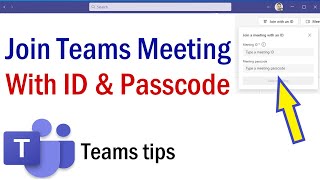
How To Join a Teams Meeting With Code: A Step‑by‑Step Guide
Joining a Microsoft Teams meeting using a code is a quick way to connect when you don’t have a full link or want to skip the sign‑in step. In this article, we’ll walk you through every method you can use to join a meeting with a code, from the desktop app to the web browser and even the mobile app.
What Is a Teams Meeting Code?
A Teams meeting code is a short alphanumeric string that uniquely identifies a scheduled meeting. It’s an alternative to the full meeting link that often includes a long URL. When you enter the code, Teams automatically pulls the meeting details and brings you right into the session.
How To Join a Teams Meeting With Code
Below are the most common ways to use a code to join a meeting. Pick the method that matches the device you’re using.
Desktop App- Open the Teams desktop app.
- In the left‑hand navigation bar, click Calendar or Meetings.
- Click the Join button at the bottom of the screen.
- In the Join a meeting dialog, type the meeting code into the field labeled “Enter a meeting code.”
- Press Enter or click Join again. The meeting will launch in a new window.
- Navigate to teams.microsoft.com.
- Sign in with your Microsoft account if prompted.
- Click the Calendar icon on the left.
- Select Join at the bottom of the page.
- Enter the meeting code in the pop‑up box and click Join.
- Choose your audio and video settings, then click Join now.