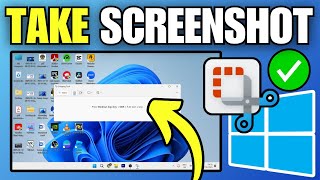
How To Screenshot In Windows 11 Enterprise: A Complete Guide
Windows 11 Enterprise adds a suite of native tools that let you capture anything on your screen—whether it’s the entire desktop, a single window, or a custom region. This article walks you through every built‑in method, highlights shortcuts for power users, and suggests additional utilities for advanced scenarios such as long webpages or multi‑page documents.
Why Windows 11 Enterprise Makes Screenshotting Easy
Enterprise editions are designed for productivity. The operating system includes:
- Keyboard shortcuts that work instantly without extra software.
- The modern Snipping Tool, which merges the classic Snip & Sketch experience with new editing features.
- The Xbox Game Bar, a reliable screen‑capture overlay originally built for gamers but useful for any professional.
- Policy‑friendly settings that can be enabled or disabled by IT administrators, ensuring compliance with corporate security standards.
Built‑In Keyboard Shortcuts
Capture the Entire Screen
Press Print Screen (PrtScn) to copy the whole display to the clipboard. You can paste the image directly into a document, email, or image editor. In Windows 11 Enterprise, the default behavior is to open the Snipping Tool automatically, giving you a chance to annotate before saving.
Save a Full‑Screen Shot Directly to a File
Use Windows + Print Screen. The screen dims for a moment, and the image is saved to Pictures \ Screenshots. This method is perfect for quick documentation without leaving the keyboard.
Capture a Single Window
Activate the window you want to capture, then press Alt + Print Screen. The active window is copied to the clipboard, ready for pasting. This shortcut avoids the clutter of the entire desktop and is ideal for troubleshooting screenshots.
Open the Snipping Tool Instantly
Press Windows + Shift + S. A translucent overlay appears with four shape options: rectangular, free‑form, window, and full‑screen. After you select an area, the image is placed on the clipboard and a notification lets you launch the Snipping Tool for further editing.
Using the Snipping Tool for Precise Captures
The Snipping Tool in Windows 11 Enterprise combines the simplicity of a quick snip with powerful annotation tools.
- Open the tool by searching “Snipping Tool” in the Start menu or by using Windows + Shift + S.
- Select the desired snip mode—Rectangular, Free‑form, Window, or Fullscreen.
- Drag to define the capture area. The screenshot is automatically copied to the clipboard.
- Click the notification that appears to open the Snipping Tool editor. Here you can add arrows, highlights, text, or crop further.
- Save the image as PNG, JPG, or GIF, or share it directly via email or Teams.



![3 Ways To Take A Screenshot In Windows 11 [2026 Guide]](https://i.ytimg.com/vi/ZJPJvTnU8hU/mqdefault.jpg)